When building Power Apps, especially those that involve nested formulas like ForAll, Filter, or LookUp, things can get messy fast. You might find yourself staring down a disambiguation error or wondering why your logic isn’t working as expected.
Good news — the As operator was made for this exact moment.
Today we’re diving into what the As operator is, what problem it solves, and how to use it effectively — especially when you’re deep in nested loops or filters.
📦 What Is the As Operator?
The As operator in Power Fx gives a name to the record scope inside certain functions like ForAll, AddColumns, Filter, and others. This is incredibly useful when you’re juggling multiple record scopes and want to be explicit about which record you’re referencing.
It works like this:
ForAll(colTestCollection As FriendlyName, ...)
Now you can use FriendlyName.ColumnName to clearly point to the field from that specific record.
🎯 Why Does This Matter? Let’s Talk About Scope
Before we get into the how, let’s tackle the “why” — and that starts with understanding scopes.
In Power Fx, functions like ForAll, Filter, and AddColumns create their own scopes — basically temporary “workspaces” where Power Fx focuses on one record at a time.
🧪 Think of it like a science teacher reviewing each student’s lab report one by one. For a short period, the focus is on just that one student — their name, grade, behavior, etc. That “bubble” of attention is the scope.
So when you nest one of these functions inside another (e.g. a Filter inside a ForAll), Power Fx now has multiple scopes at play — and it can get confused about which “current record” you’re referring to. This is called disambiguation — and when it’s not clear, your app throws an error or behaves in weird ways.
😵💫 A Problem Without As: Ambiguous References
Here’s an example using an education scenario, where we’re trying to show all students for each student type.
AddColumns(
    colStudentTypes,
    "Students",
    Filter(
        colStudents,
        Type = Type
    )
)
Looks innocent enough, right?
But here’s the problem: both colStudentTypes and colStudents have a column named Type. Since Filter creates its own record scope, Power Fx thinks both Type references belong to colStudents — and that’s not what we want. We’re trying to compare the outer StudentType‘s Type to the inner Student‘s Type.
Boom — ambiguity.
🛠️ Enter the As Operator
Let’s fix that with As.
AddColumns(
    colStudentTypes As StudentTypeRecord,
    "Students",
    Filter(
        colStudents,
        StudentTypeRecord.Type = Type
    )
)
By naming the outer record StudentTypeRecord, we make it crystal clear which Type we’re referring to removing the confusion and the referencing errors in one fell swoop.
🔄 Nested ForAll Loops Done Right
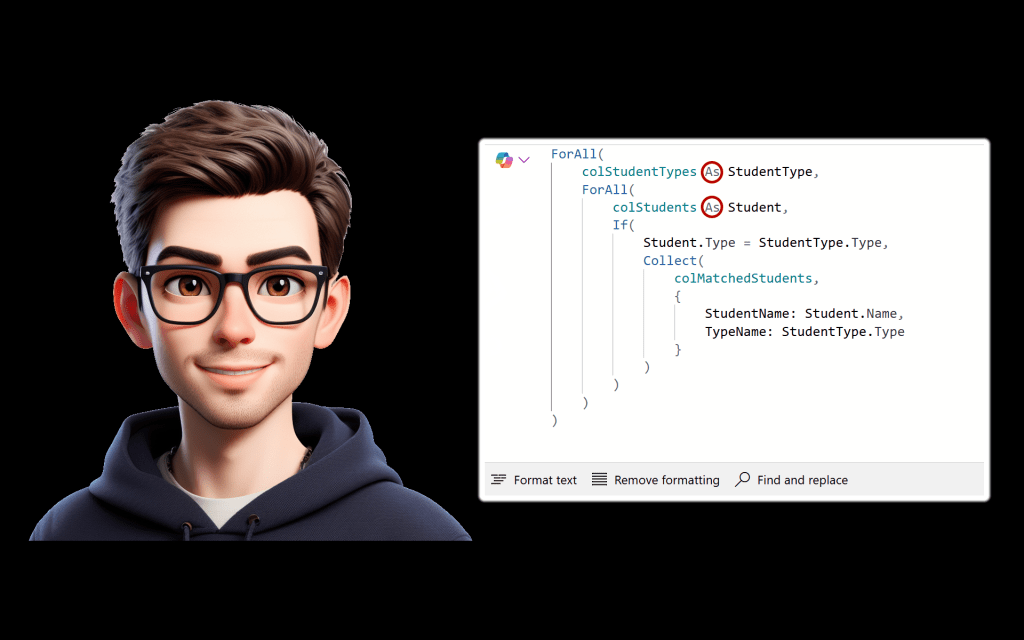
Let’s go one step further and look at how As helps in nested ForAll loops — another common source of headaches.
ForAll(
    colStudentTypes As StudentType,
    ForAll(
        colStudents As Student,
        If(
            Student.Type = StudentType.Type,
            Collect(
                colMatchedStudents,
                {
                    StudentName: Student.Name,
                    TypeName: StudentType.Type
                }
            )
        )
    )
)
Without As, you’d have to rely on ThisRecord, which gets messy fast in nested contexts. With As, you’re in full control — and your formulas read like English.
🧪 Alternative: The Disambiguation Operator [@]
Yes — there’s another way to solve this. You can use the disambiguation operator [@] to specify the exact data source:
powerfxCopyEditFilter(
    colStudents,
    [@colStudentTypes].Type = Type
)
But let’s be honest — this gets hard to read when you have more than one nested function. The As operator makes your logic more expressive and maintainable, especially when collaborating with others (or future-you).
✅ Best Practices for Using As
- Use
Asin nested functions to prevent ambiguity and make your formulas self-documenting. - Pick clear aliases — avoid single letters like
xorrunless it’s a super short formula. - Still confused? Try temporarily adding a
Labeland usingText(ThisRecord.Type)orText(YourAlias.Type)to check which scope you’re in.
💡 Wrapping Up
The As operator is one of those hidden gems in Power Fx. It doesn’t look flashy, but it solves real problems when you start building more advanced apps.
Once you get used to writing with it, you’ll wonder how you ever managed without it.
Happy building! 💪




 Power Nerd Insights - Power Platform Tips and Tricks
Leave a comment