I recently encountered an interesting issue with a Power Automate solution that I had deployed around three months ago. The solution was built to manage document filing in SharePoint, particularly when a file was uploaded to a staging document library. It worked by splitting down the document name, searching through a pre-built filing structure (organized by year of account document libraries and folders with specific metadata), and filing the document into the correct folder based on the file name.
One crucial step in this flow was using the ‘Get Files (properties only)’ action, which had consistently identified folders with matching metadata up until a support ticket was raised. Suddenly, the action stopped identifying folders despite the folders being visible when filtering columns for the relevant unique reference in the document library.
After an hour or so of investigation it looked like there was no clear issue within the flow that would cause it to not return the folder. That’s when I checked the number of items in the library and the ID of the relevant folder, which was ID 10391. Interestingly, folders with IDs over 10,000 were not being found by the action. This raised the question: what was the solution?
Solution 1: Indexing the Metadata Column
The first solution I explored was indexing the unique reference metadata column in the SharePoint library. By indexing this column, the ‘Get Files (properties only)’ action could once again retrieve the relevant folders. However, this solution had a drawback—our document libraries are created programmatically, so someone would need to remember to manually index the column every time a new library was set up.
(Side note: if anyone knows how to automate this process using SharePoint REST API calls, please share!)
Solution 2: Using ‘Send an HTTP Request to SharePoint’
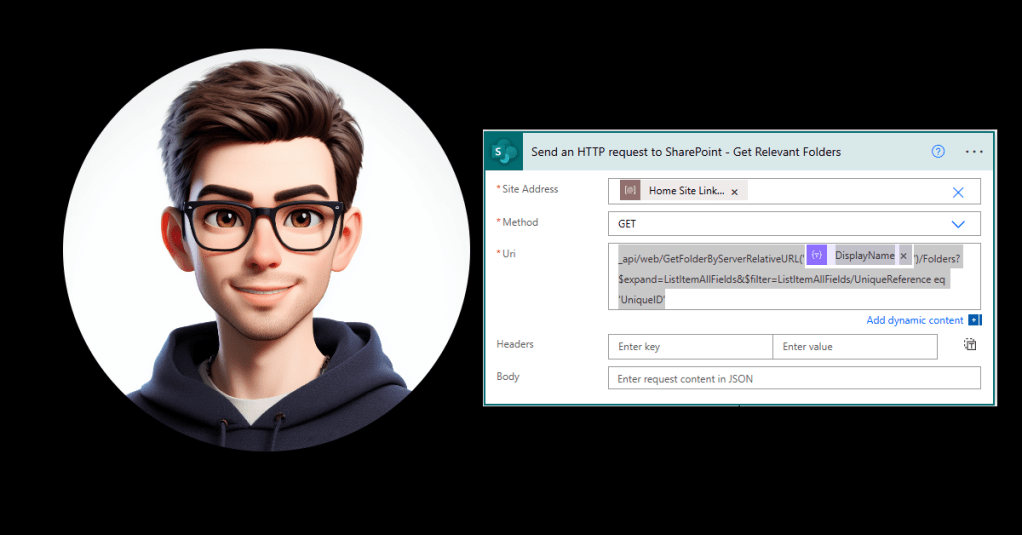
The second solution was to replace the built-in action with a ‘Send an HTTP Request to SharePoint’ action. This approach was more efficient as it allowed me to filter folders directly through the API. By pre-filtering the folders, I avoided the ID threshold issue. Here’s how the URI looked:
_api/web/GetFolderByServerRelativeURL('DocumentLibraryName')/Folders?$expand=ListItemAllFields&$filter=ListItemAllFields/UniqueReference eq 'UniqueID'
This way, the flow retrieves only folders and applies the necessary filtering right in the request, ensuring that the flow remains efficient and scalable.
The Final Implementation
Below is a screenshot of the HTTP request action configured in Power Automate:

This solution ensures that the flow accurately identifies and retrieves folders, regardless of their ID values, and avoids the manual indexing requirement.





 Power Nerd Insights - Power Platform Tips and Tricks
Leave a comment